|
|
|
|
Step |
BUILDING YOUR FIRST AIRCRAFT |
|
| 34 |
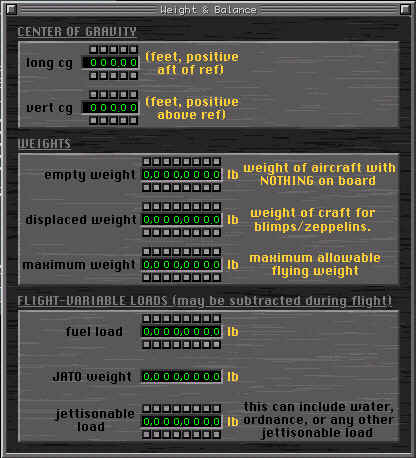
Go to STANDARD and WEIGHT AND BALANCE. Here is where you set your
center-of-gravity, weight, and fuel loads.
CENTER OF GRAVITY- Center of gravity is X-plane is fixed and cannot be
move left or right.
 | LONG CG - This is where you set the center of gravity back from the
nose in feet |
| VERT CG - 0 This is where you set the center of gravity above the
centerline of the aircraft. |
WEIGHTS - Here is where you set the weight of your aircraft.
| EMPTY WEIGHT - This is howmuch the aircraft would weigh without
fuel, cargo, crew, oil, etc... |
| DISPLACED WEIGHT - This is the 'negative weight' of the aircraft
caused by lift from internal sources. This is normally for 'lighter
than air' aircraft (blimps and such). |
| MAXIMUM WEIGHT - This is the maximum weight the aircraft can weigh.
X-plane does allow you to take-off overweight, but the program will
warn you about it. |
FLIGHT VARIABLE LOADS- These are weights that can change during flight.
| FUEL LOAD - This is how much fuel the aircraft can carry (in
pounds). A gallon (US) of fuel is about 6.0-6.5 pounds. |
| JATO WEIGHT - This is the weight of the fuel for your JATO rockets
(if used) |
| JETTISONABLE LOAD - This is a load of weight that you can 'drop'
while flying. (bombs, water, cargo, etc) |
|
 |
| 35 |
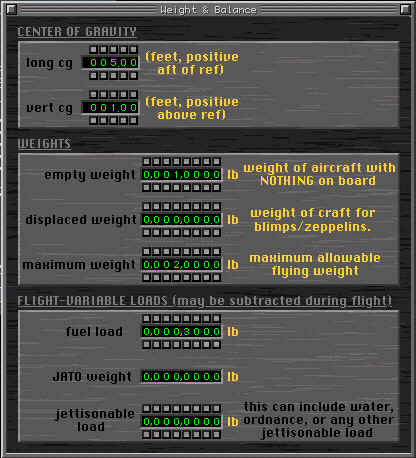
Time to add weight to our design.
CENTER OF GRAVITY
|
LONG CG = 5.0 - This is directly under the MAC of
WING1 |
|
VERT CG =1 - This is one foot above the centerline,
but well below the wings (about at your shoulder) |
WEIGHTS
|
EMPTY WEIGHT - 1000 pounds |
|
DISPLACED WEIGHT - zero. This is a plane, not and
airship |
|
MAXIMUM WEIGHT - 2000 pounds. Fuel, Pilot, Lunch, and
Briefcase. |
FLIGHT VARIABLE LOADS
|
FUEL LOAD - 300lbs or about 50 gallons |
|
JATO WEIGHT - 0 .. are you nuts? |
|
JETTISONABLE LOAD - 0 I have no plans to drop things
from this aircraft (intentionally). |
|
 |
| 36 |
Hey, its looking like
an airplane finally! |
 |
| 37 |
Go to SPECIAL and then
down to SHOW WITH TEXTURES. |
 |
| 38 |
Now you can see a
solid version of the airplane. |
 |
| 39 |
Hopefully you made a
BITMAPS EXTERIOR folder back in step 2. If you did, then go to SPECIAL and
then to OUTPUT TEXTURE MAP STARTING POINTS. This will make a bunch of
files in the BITMAPS EXTERIOR folder that you can paint and edit to
'paint' your airplane.
YOU SHOULD MAKE A BACKUP OF YOU TEXTURES BEFORE DOING
THIS IF YOU ARE 'REPAINTING' |
 |
| 40 |
This is the ALERT
message you'll get when you do this. If you forget, no big deal, but you
won't get the textures. Please note than from 5.60 and beyond this
function will over-write the old textures for this aircraft. |
 |
| 41 |
Here is a screenshot
of my aircraft after a quick paintjob. I had to copy the WHEELS.BMP from
the Cessna 172 folder in to my BITMAPS EXTERIOR folder. |
 |
| 42 |
At this point
(actually anytime after step 35) you can take her up for a test flight.
|
 |